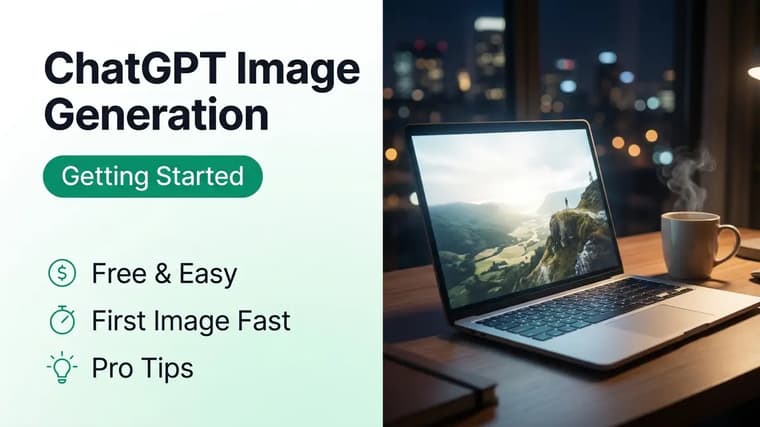
ChatGPT is one of the easiest places to start generating AI images because you do not learn a special syntax — you just describe what you want in plain English, look at the result, and reply with corrections like you are directing a very fast illustrator. This guide covers the full workflow: writing your first scene description, using your own photos as references, revising conversationally, getting readable text into images, controlling style and aspect ratio, and saving the results properly.
Step 1: Ask for an Image in Plain Language
Type your request directly into the chat: "Create an image of..." followed by your scene. ChatGPT detects image requests automatically, so no special command is needed. The skill is in the description, and a reliable structure is subject, setting, lighting, style:
- Subject: who or what, with two or three concrete details.
- Setting: where, and what is around them.
- Lighting: the time of day or light source.
- Style: photograph, watercolor, 3D render, flat illustration, and so on.
Thin vs full prompt
Thin prompt: "A cat in a cafe." Full prompt: "Create an image of a fluffy orange cat sleeping on a stack of books beside a steaming cappuccino, in a cozy cafe with warm morning light through a rain-streaked window. Soft photographic style, shallow depth of field." Both are valid requests, but the second one makes decisions — pose, props, weather, light, style — that the first leaves to chance.
Specific beats long. Five concrete details outperform two paragraphs of adjectives. If your descriptions come out vague, the framework in how to write better AI image prompts is the fastest fix.
Step 2: Upload a Photo as a Reference
ChatGPT can work from images you provide. Click the attach (paperclip or plus) icon, add a photo, and state its role in the same message. Common reference patterns:
- Restyle a person: "Using this photo of me, create a version where I am wearing a tailored navy suit in a modern office. Keep my face exactly the same as the photo."
- Borrow a style: "Create a new image of a lighthouse at dawn in the same art style and color palette as this attached image."
- Recreate a layout: "Make an illustration with the same composition as this photo, but replace the car with a bicycle."
The key habit: always say WHAT the reference is for. An attached photo with no instruction leaves ChatGPT guessing whether you want a copy, a critique, or a remix. And when the reference is a person, add an explicit identity line — "keep the face identical to the uploaded photo" — or the output will resemble you without being you. The trade-offs between working from a reference versus pure text are covered in depth in reference images vs. text prompts.
Step 3: Revise by Replying, Not Restarting
This is ChatGPT's superpower. When an image is 80% right, do not rewrite the whole prompt — reply with the 20% you want changed:
- "Same image, but make it nighttime."
- "Keep everything, just change her jacket to red."
- "Zoom out so we can see the full room."
- "Remove the text from the sign."
ChatGPT keeps the conversation's context, so targeted follow-ups preserve what worked. Change one thing per message; a reply that alters lighting, outfit, and background at once often reshuffles details you wanted kept.
Restart when it breaks
If a result is badly wrong — wrong subject, wrong style entirely — stop patching. Three or four corrective replies on a broken image usually produce a Frankenstein result. Start a fresh request with an improved full description instead. Revise the good; regenerate the bad.
Step 4: Put Text Inside Images
Modern ChatGPT image generation handles text far better than early AI tools, but it still needs precision. Rules that consistently work:
- Quote the exact text: write the words in quotation marks — a poster that says "GRAND OPENING" — so the model treats them as literal characters, not a theme.
- Keep it short. One to five words render reliably. Full sentences invite typos.
- Say where and how: "bold white sans-serif text at the top" beats hoping for good placement.
Text-in-image prompt
"Create a minimalist coffee shop poster. Large bold cream-colored text at the top reads 'SLOW MORNINGS'. Below it, a simple line illustration of a coffee cup on a dark green background. Vintage print style." If a word comes out misspelled, reply: "Regenerate the same image but fix the text — it must read exactly 'SLOW MORNINGS'." One correction round fixes most typos.
Step 5: Request Styles and Aspect Ratios
Style is just another sentence. Name a medium ("watercolor", "3D render", "35mm film photograph", "flat vector illustration"), an era or mood ("1980s retro futurism", "cozy studio ghibli-inspired warmth"), or a genre ("noir", "editorial fashion photo"). One or two style anchors per image; competing styles average into mush.
Aspect ratio is a plain request too. ChatGPT supports square, wide, and tall outputs — ask for the shape by name or use case:
- "Make it square" — profile pictures, general use.
- "Make it widescreen / landscape 16:9" — desktop wallpapers, video thumbnails.
- "Make it vertical / portrait" — phone wallpapers, stories, Pinterest.
You can convert an existing result: "Regenerate this as a vertical image for a phone wallpaper." Expect the scene to be recomposed, not just cropped — the model refits the composition to the new frame. For a full breakdown of which shape suits which platform, see AI image aspect ratios explained.
Set the frame early
State the aspect ratio in your first message rather than converting later. Composition decisions — where the subject stands, how much sky exists — are made for the frame shape, so a scene designed vertical from the start beats a landscape scene squeezed vertical afterwards.
Step 6: Save and Export Your Images
Click or tap the image, then use the download icon to save the full-resolution file — do not screenshot, which throws away resolution and crops the frame. On the mobile app, tap the image and use the save/share option to send it to your photo library.
Two practical notes. First, images live inside the chat, so keep good sessions instead of deleting them — you can return next week and continue revising with context intact. Second, download every version you like at the moment you like it; if you continue iterating, older frames stay in the scroll history, but hunting for them later is tedious.
A Complete Starter Prompt
Paste this into ChatGPT as-is for your first generation — no uploads needed.
Create a widescreen 16:9 image of a small wooden cabin on a cliff overlooking a calm sea at golden hour. Warm light glowing from the cabin windows, a winding stone path leading to the door, wildflowers in the foreground, seagulls in the distance. Soft photographic style with rich warm colors and gentle film grain. Peaceful, storybook atmosphere.
Then practice the revision loop: reply "make it winter with snow", then "change to a starry night with aurora in the sky." Watching one scene transform across replies teaches the conversational workflow faster than any article can.
Where to Go Next
You do not need to invent every prompt from scratch. The ChatGPT prompts page collects tested prompts with their real example images, and the explore page covers every tool and trend on the site. Copy something proven, run it, then start swapping details — it is the fastest way to build prompt intuition.
Frequently Asked Questions
❖Is ChatGPT image generation free?
Free accounts can generate images with daily limits that vary over time. Paid plans raise the limits and speed things up. All techniques in this guide work on the free tier — limits affect how many attempts you get, not what you can do.
❖Why do my images look different from other people's results with similar prompts?
Image generation is non-deterministic: the same prompt produces variations on every run. Style anchors, lighting phrases, and composition details narrow the range. If someone's result impresses you, get their exact wording — paraphrases lose the load-bearing phrases.
❖Can ChatGPT edit a photo I upload without changing my face?
Yes, if you instruct it explicitly: "keep my face exactly identical to the uploaded photo, only change the background." Without that line, expect a lookalike rather than you. Strong preservation phrasing is the difference.
❖How many revisions can I make to one image?
As many as your usage limits allow, but quality-wise, three to five focused revisions is the sweet spot. Beyond that, small errors compound; take your best wording and start a clean generation instead.